Create a Model
Creating a model is the first step in building a Digital Product Passport (DPP). A model defines the structure, materials, and compliance information for your product.
Note: If GS1 Digital Link is enabled for your organisation, a required Global Trade Item Number (GTIN) field also appears here.
Before you start
Your Provenant workspace includes a basic starter template and default roles so you can begin creating models right away. You can customise these at any time.
Make sure your company has:
- At least one compliant template available for your category (Textiles Compliant, Construction Compliant, Furniture Compliant, or Toys Compliant) or a custom template your team created.
- The required documents (such as LCAs, EPDs, certificates) uploaded in the Documents Library.
- Appropriate roles and permissions defined for model creation and publishing.
Provenant ships with a default template and role set to get you started quickly, but you’re free to create additional templates, roles, and documents as your processes mature.
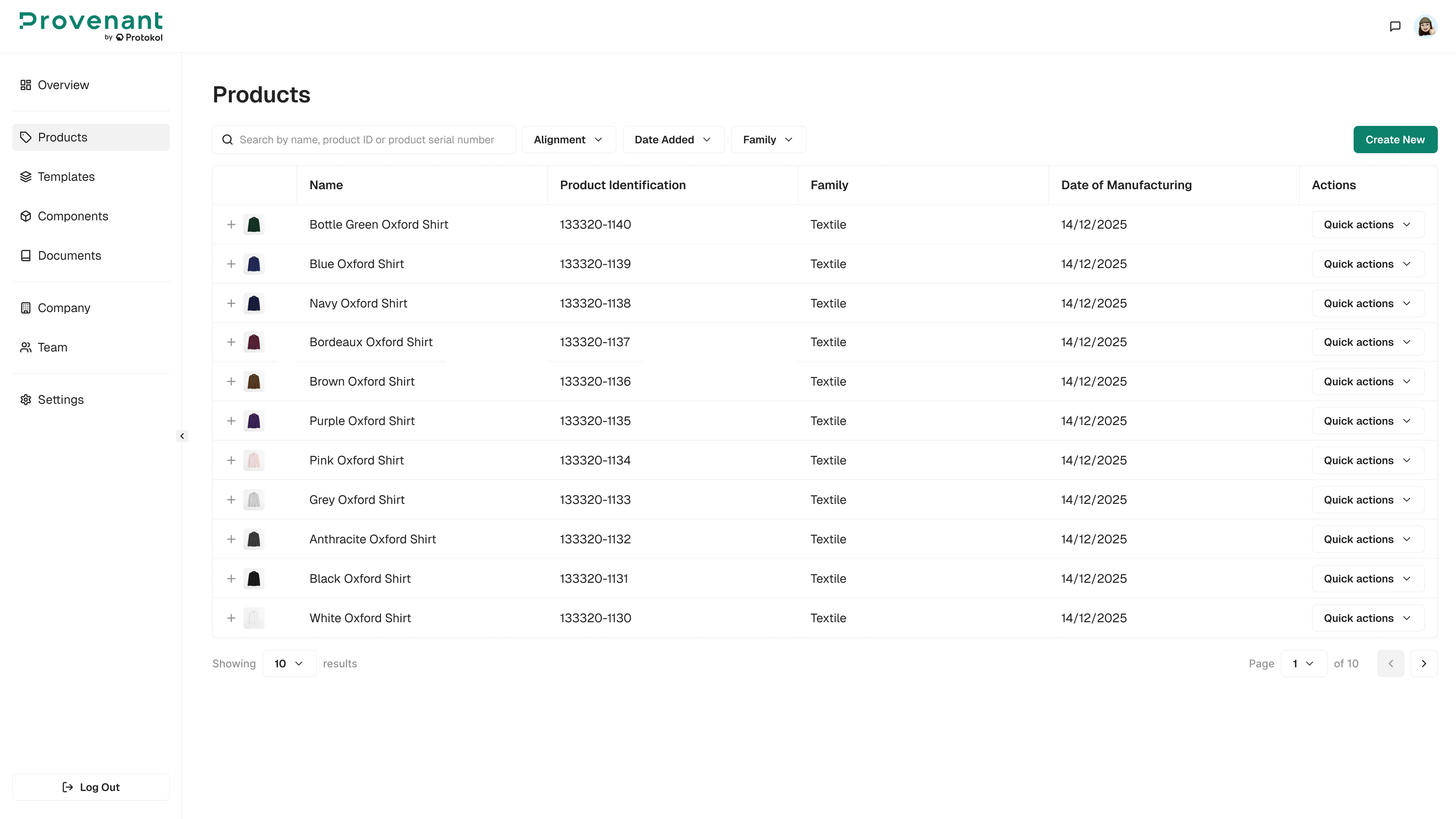
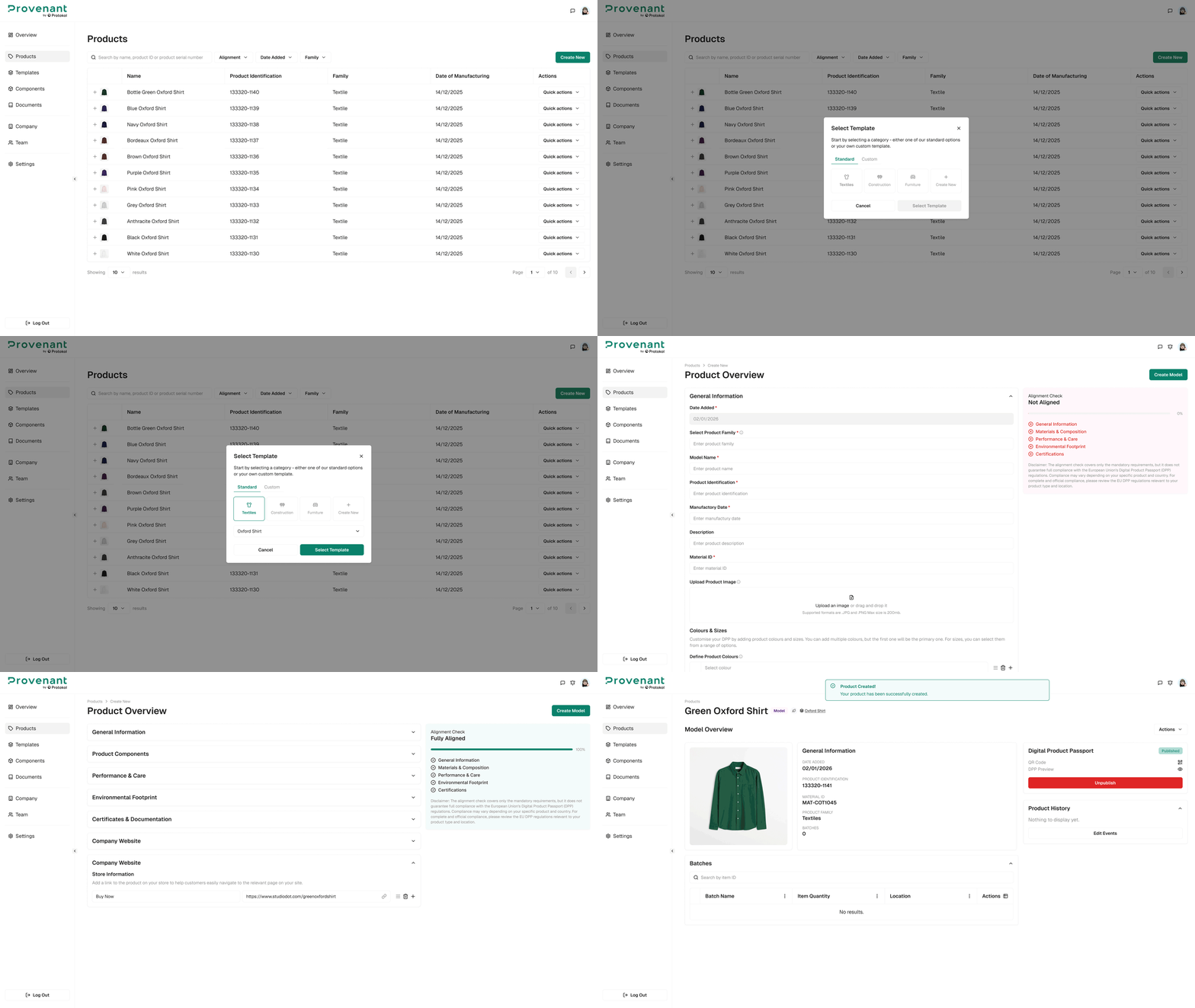
Steps
- Navigate to
Products›Create New. - In the
Select templatedialog, select a family, and then select a live template that matches your product category (for example, Textile – with Components). - Click
Select Templateto begin editing. - Complete each section of the form.
- Click
Create Modelto save the model.
Sections and fields
The table below describes the standard sections included in the Compliant templates (Textiles, Construction, Furniture, Toys). Other templates may show only a subset of these sections.
You can work with the Provenant team to customise templates for your product category and compliance requirements.
| Section | Description |
|---|---|
| General Information | Add a short description, product tags, and a main product image. |
| Materials & Composition | Link existing materials/components (e.g., fabrics, trims, zippers) or add new ones later. |
| Performance & Care | Specify washing/drying/ironing/dry-cleaning and other care instructions. Toggle features (e.g., Flame retardant, Hypoallergenic, Recyclable) and include safety notes. |
| Environmental Footprint | Provide environmental footprint data (e.g., LCA/EF). Attach supporting evidence from the Documents Library where relevant. |
| Certificates | Attach EPDs, test reports, and certificates from the Documents Library. |
| Company Website | Define the end-user CTA (call-to-action) label (e.g., “Learn more”, “Repair this product”) and provide the target URL. |
Available sections and fields vary by template and product category. The Provenant team can help you design or adjust templates (including Compliance Only) so they match your data model and regulatory scope.