Batches and Items
Use batches to represent production runs or to generate item-level DPPs when each unit needs its own QR code.
tip
Note: If GS1 Digital Link is enabled for your organisation, a batch/lot identifier field also appears here.
What batches are for
- Group identical items from a single production run.
- Choose whether to issue one DPP per batch or one DPP per item.
- Track batch- or item-specific events (e.g., recycling, refurbishment).
Create a batch
Steps
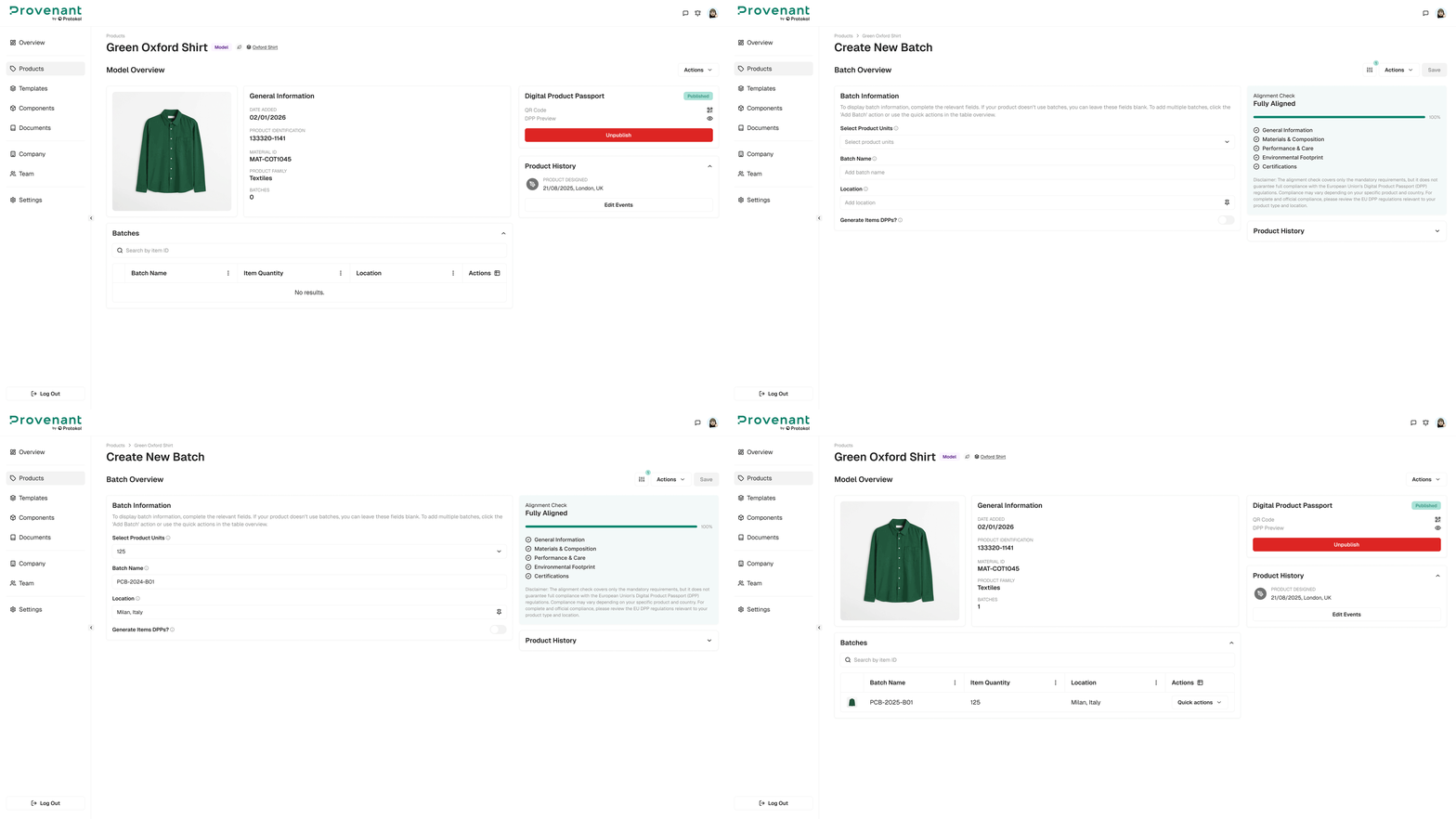
- Open the
Model Overviewfor the relevant product. - Select
Actions›Add New Batch. You can also selectQuick Actions›Add Batchin the Products list. - Complete the batch fields from the template, for example:
- Batch name
- Quantity
- Location
- Weight (if applicable)
- Choose:
- DPP per item – creates one QR per item, or
- One DPP for the batch – single QR shared by all items.
- Select
Create Batch, then confirm any summary dialog displayed.
You can now use the same model to create multiple batches that share most data but differ in a few specific fields, instead of duplicating models for every variation.
Batch Overview
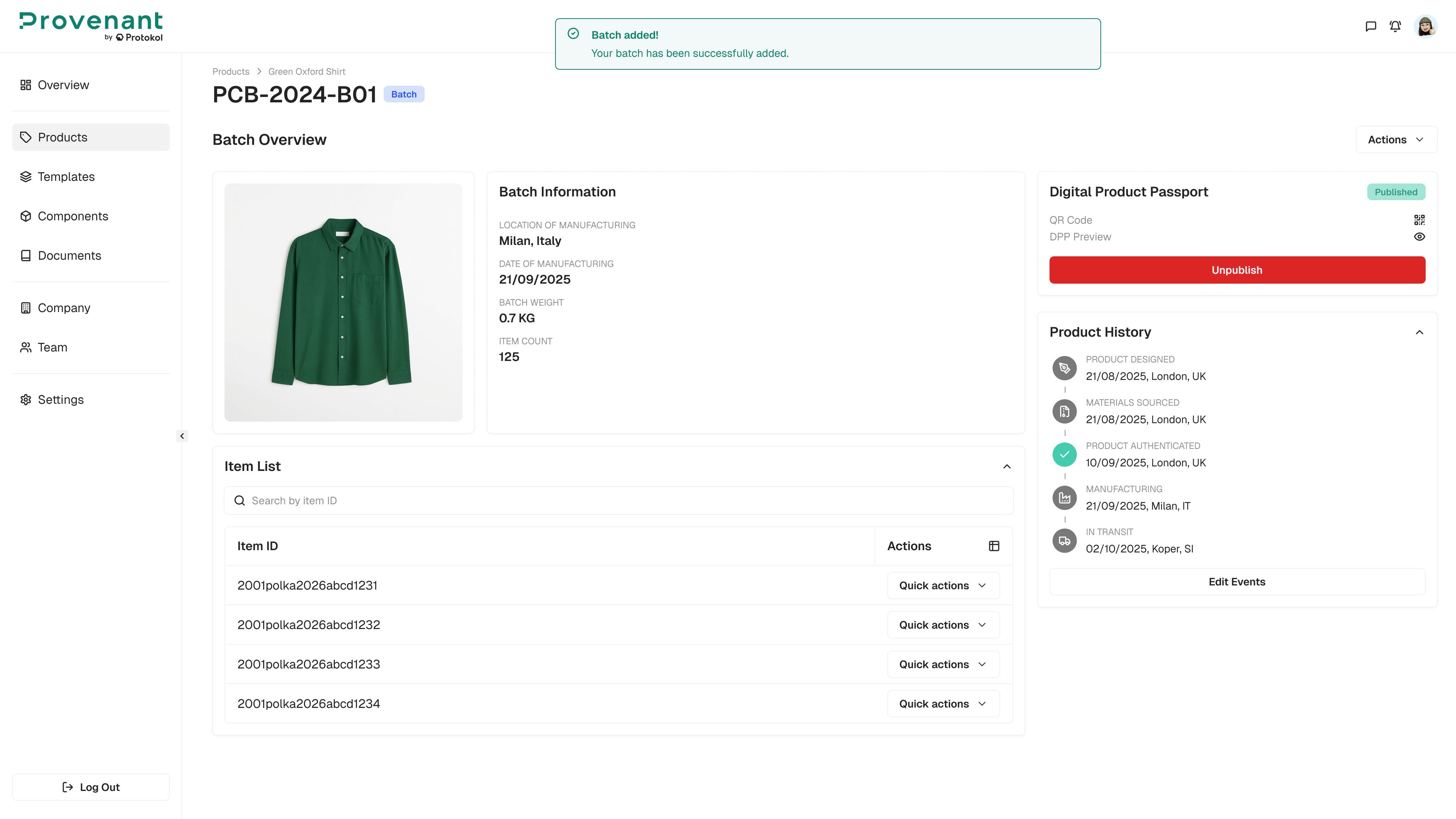
From the Batch Overview, you can:
Publish/unpublishthe batch DPP.- Use the
Actionsmenu toAdd Items,Edit Batch, orDelete Batch. - Manage batch events (e.g., batch-specific milestones).
- Manage item-level DPPs in the
Item Listif item-level QRs are enabled.