Troubleshooting
Running into an issue? These quick checks can help resolve the most common problems. When a step refers to a setting, the link will guide you to the right place in the documentation.
Common problems
Publish is disabled
- Open
My Profileand confirm yourRole. - Ask an
adminto grantPublishonDPPs(seeSettings›Roles & Permissions).
tip
Republishing keeps the same QR. To generate a new QR, clone the model and publish the clone.
QR code is not visible
- Open the
Model Overview. - Select
Publish(if unpublished). - Select
Display QR Code.
DPP didn’t update after editing
- Select
Saveon the edit form. - If the DPP shows
Out of Sync, selectRepublishin theDigital Product Passportpanel. - Refresh the
DPP Previewand clear your browsercacheif needed.
Can’t save a model
- Check for
required fields(look for * indicators in the form). - If some fields are incomplete, a
Before You Proceed...dialog opens. SelectSave Anywayto save the model, orCancelto complete the fields first. - Confirm with your
workspace adminyour role hasUpdateonProducts.
Can’t attach a document
- Ensure your document is uploaded to the
Documents Library. - Open
Documentsfrom the left navigation; if the document does not exist, you will need touploadit first. - Click on
Add New→ setDocument Name,Document Type,Folder,Description, then upload your document. - Save the
Document. - Navigate to your
Model(or create a new one). - Inside creation find the
Select Documentsfield, and select the uploaded file.
Events don’t appear in the DPP journey
- Confirm you added the event at the
correct level(Model vs Batch). - Ensure the
Event Addeddate andLocationare set andCreate Eventwas selected. - If the model/batch is
unpublished,Publishit and then refresh theDPP Preview.
Access key doesn’t work (Error codes 401/403)
- In
Settings›Access Keys, verify the key exists and isactive. - Check
Define Permissionsscopes; enable least-privilege rights needed. - Rotate the key (create a new one) and
updatethe integration secrets.
Batch creation fails
- Enter a
Quantitygreater than 0 and complete the batch fields. - Choose
DPPper item or OneDPPfor the batch (required). - Select
Create Batch, then confirm any dialog displayed. - If
Add New Batchshows a lock icon, your organisation has reached its batch quota. Contact your admin.
CTA button not showing
- In
Company›About, turn onEnable Links, and setAdd Store LinkandButton Label. - In the model’s store information, ensure the
CTAis defined (if you override the global). Publishthe model; refresh theDPP Preview.
Branding is hard to read
- In
Company›Identity›Branding, adjust the colours. - Ensure text/background combinations meet
WCAG AA contrast. - Reopen
DPP Previewto verify legibility.
I don’t see an option I need
- Check your
RoleinMy Profile. - Ask your
workspace adminto adjust permissions inSettings›Roles & Permissions. - Some features are plan-dependent; look for
Upgradeplan prompts or contact youradmin.
Platform status
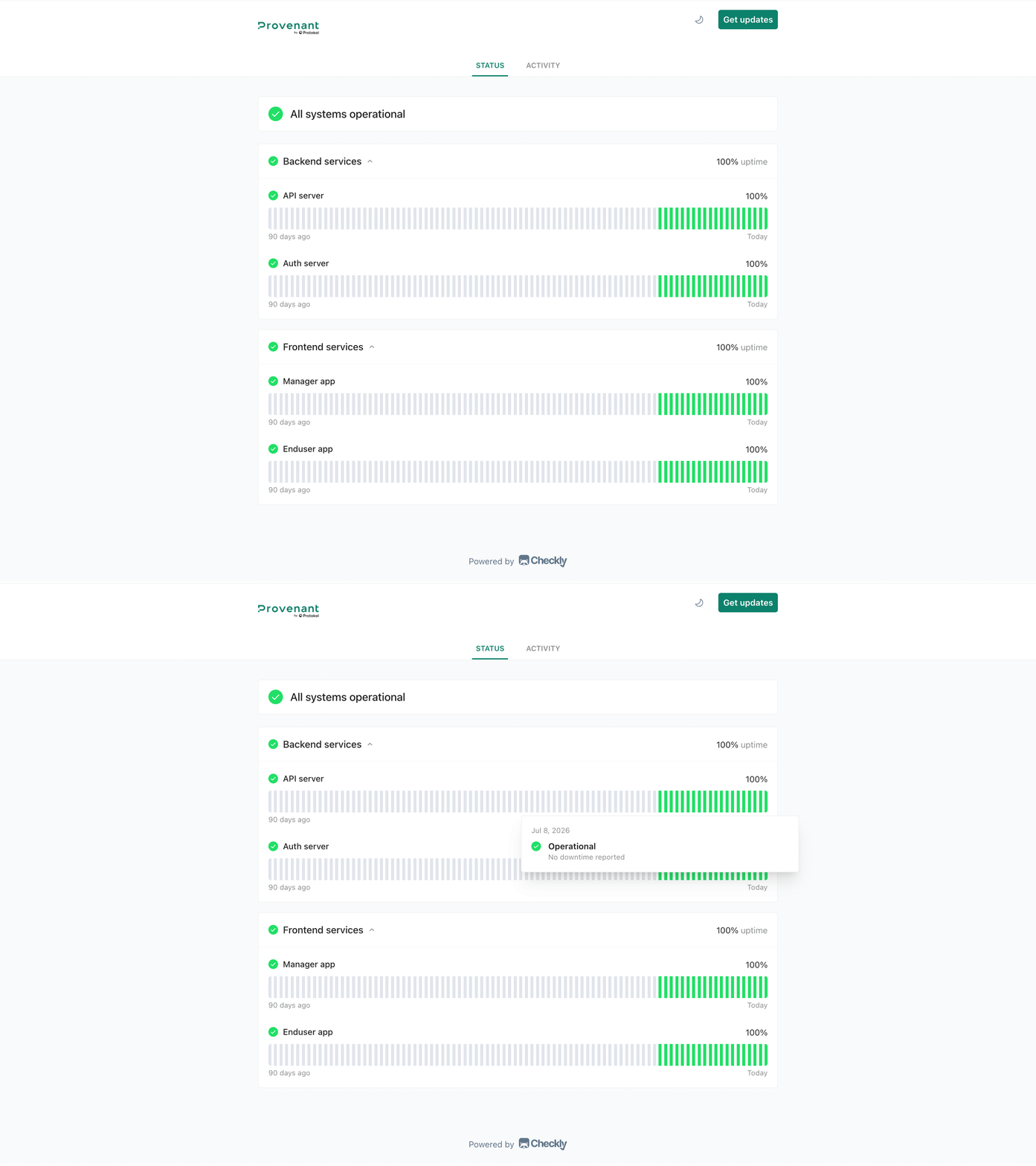
If you suspect a Provenant service is unavailable or degraded rather than a workspace configuration issue, check status.provenant.com for current availability and incident history across Provenant applications.
When to contact support
- You’ve verified
permissionsand completedrequired fields, but the action is still unavailable. Errors persistafter publish/unpublish or key rotation.- You need access to a feature flagged for a
higher plan.