Templates
Templates serve as blueprints for all your products, whether you use our pre-defined industry templates (Textiles, Construction, Furniture, Toys, Electronics, etc.) with mandatory data fields or create your own from scratch.
Steps
- Open
Templatesfrom the left navigation menu. - Click
Create New, or click aCompliantcategory card (for example, Textiles Compliant) at the top of the page. Select Categoryfor your template, and then clickContinue.- Choose whether you want to
Include Alignment Check?. Select Builder: percentages or a component-based approach.Reviewthe existing sections.- To add a new section, click
Create New Section. - Click the
Add Fieldbutton. - Select a
Field Typeand enter the required data. Repeatthis process to add morefields, or createsubsectionswithin the same section.- Preview your template using the
Template Previewpanel on the right. Publishthe template to use it immediately, orSave as Draftto edit later.
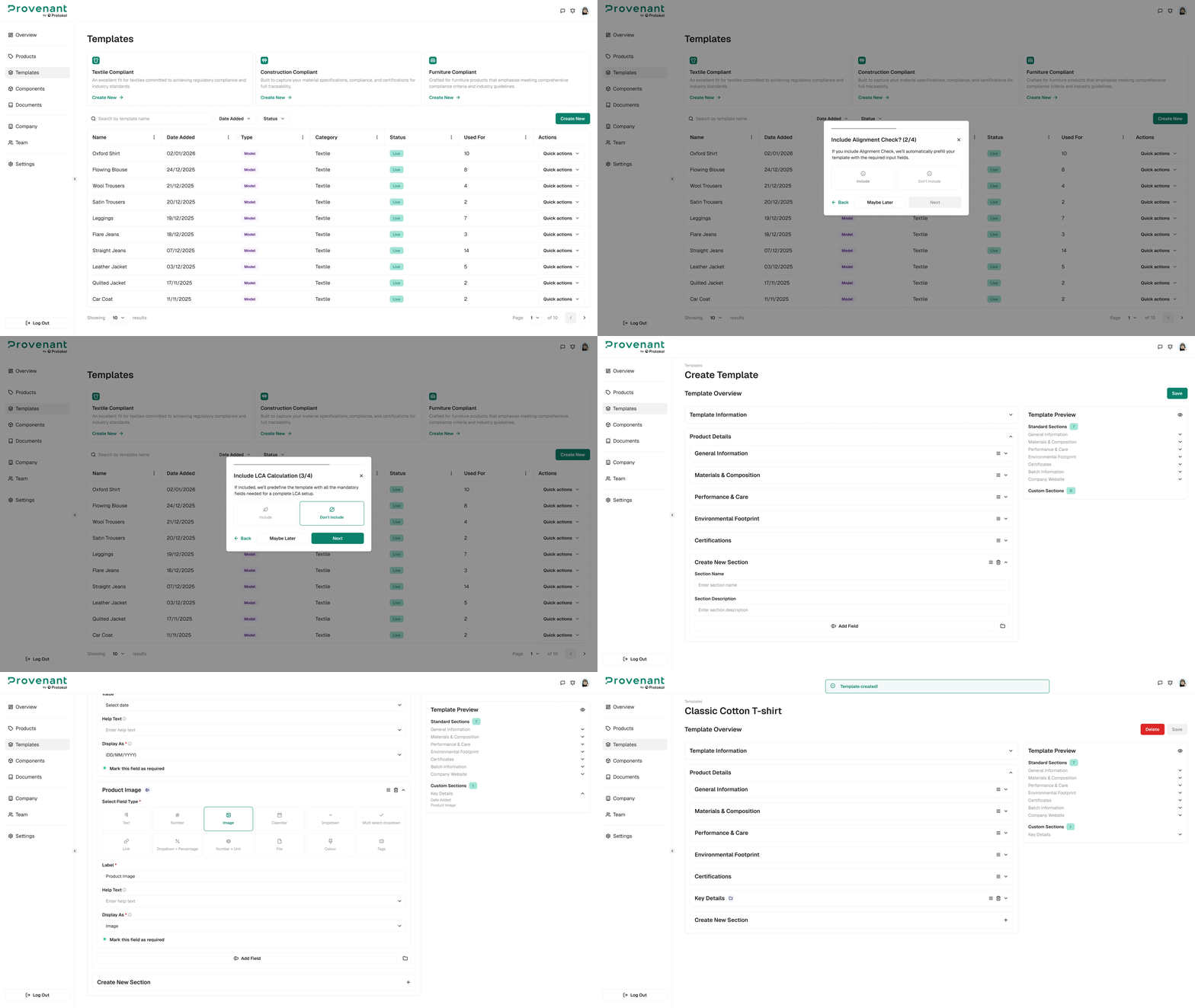
Manage templates
In the Templates list, you can search by template name and filter by Date Added, Category, and Status (Draft or Live). Use the row actions to Preview Template, Clone Template, or Delete Template.
Translate a template
You can create translated versions of a template, so end users can read the DPP in other languages.
- Open the template.
- Select
Actions›Translate Model. - In the
Translate Template?dialog, select a language, and then clickStart Translation. - Enter the translated text, and then click
Save. - Click
Publishto make the translation available to end users.
Your original version does not change. You can unpublish a translation at any time.
tip
Enabling Alignment Check lets us visually guide you in real time to ensure your product meets EU DPP requirements and its readiness levels.