Tasks
Tasks lets you hand a piece of DPP work to a named person and know whether it was completed. Create a task, assign it to a teammate, set a priority, a due date and reminders, and follow it until it is done.
A task can point to one or more models, batches, items, components or templates it is about, but it never changes the status of that record: DPPs keep their current Draft or Published status.
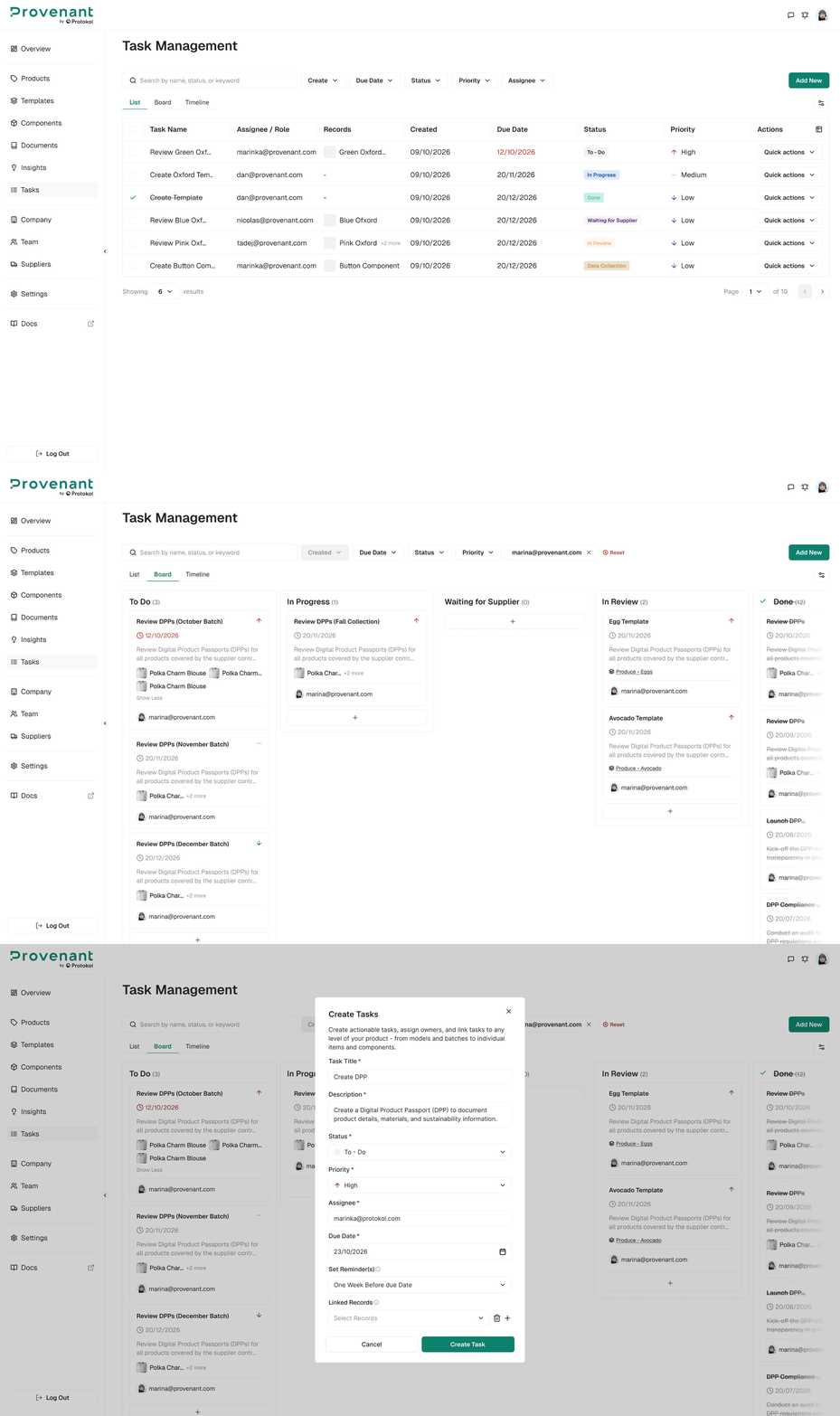
Tasks are created, assigned and closed by people. Tasks are not created automatically from platform events in this version.
Where to find it
Open Tasks in the left navigation, directly under Overview. It is visible to every user, because anyone can be assigned a task. The page is titled Task Management and offers the List view (default) and the Board view.
What a task contains
| Field | Description |
|---|---|
| Task ID | Human readable and unique, for example when searching. IDs start with TM, followed by the creation date and a sequence number. |
| Title | Required. Up to 120 characters. |
| Description | Required. Up to 5,000 characters. |
| Status | Where the task stands. See Statuses and priorities. |
| Priority | High, Medium or Low. See Statuses and priorities. |
| Assignee | One active user of your organisation. |
| Due date | The date by which the task should be done. |
| Reminders | Optional reminders sent before the task is due. |
| Linked records | Zero or more models, batches, items, components or templates of your organisation. |
| Attached files | PDF files added on the Task detail page. |
| Created by and created at | Who created the task and when. |
| Closed by and closed at | Who moved the task to Done and when. |
A task belongs to exactly one organisation and is never visible or reachable from another organisation.
Create a task
- Open
Tasksand clickAdd New. The Create Task window opens. - Enter the
Task Titleand theDescription. - Choose the
Status(To-Do by default) and thePriority(Medium by default). - In Assign to, search an
active memberof your organisation by name or email and select one. - Pick a
Due Date. A date in the past is not accepted. - Optional: turn on
Link Toand select the records the task is about. Click the plus icon to add another record, or the trash icon to remove one. - Optional: turn on
Enable Remindersand choose the reminder settings. - Click
Create Task.
Other ways to start a task
- From the Board: Click the plus icon at the bottom of a column in the Board view. The Create Task window opens with that column's status selected.
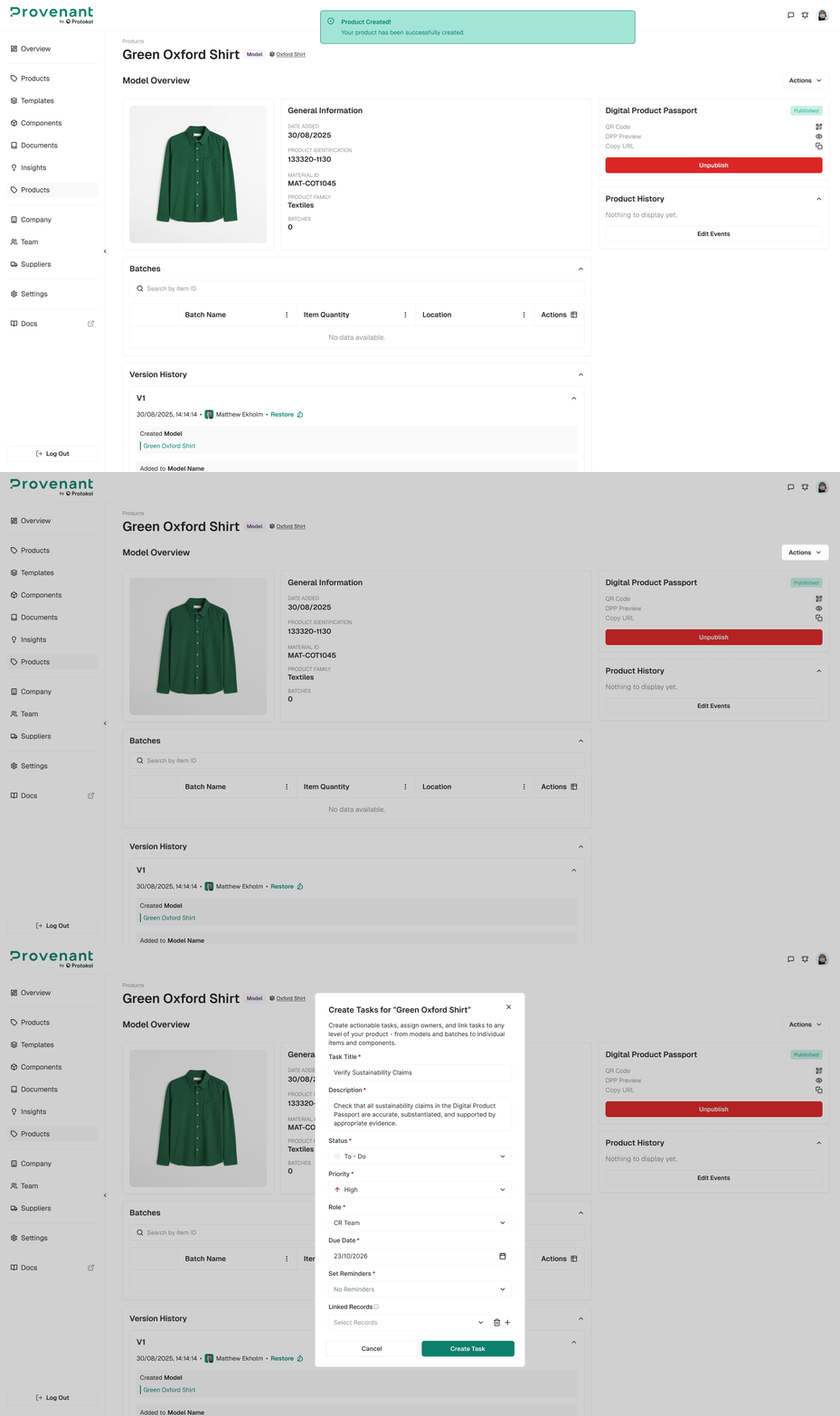
- From a product: After you create a product, the model page shows the Ready For a Complete Review? card. Click Create Tasks to open the window titled with the product's name, with Link To on and the product already selected. You can close the card, and once it is closed or used it does not appear again for that product. Learn More opens the Tasks page of the Help Centre.
- From the Actions menu: The Actions menu of model, batch, item and component pages includes Create Task, which opens the same prefilled window.
List view
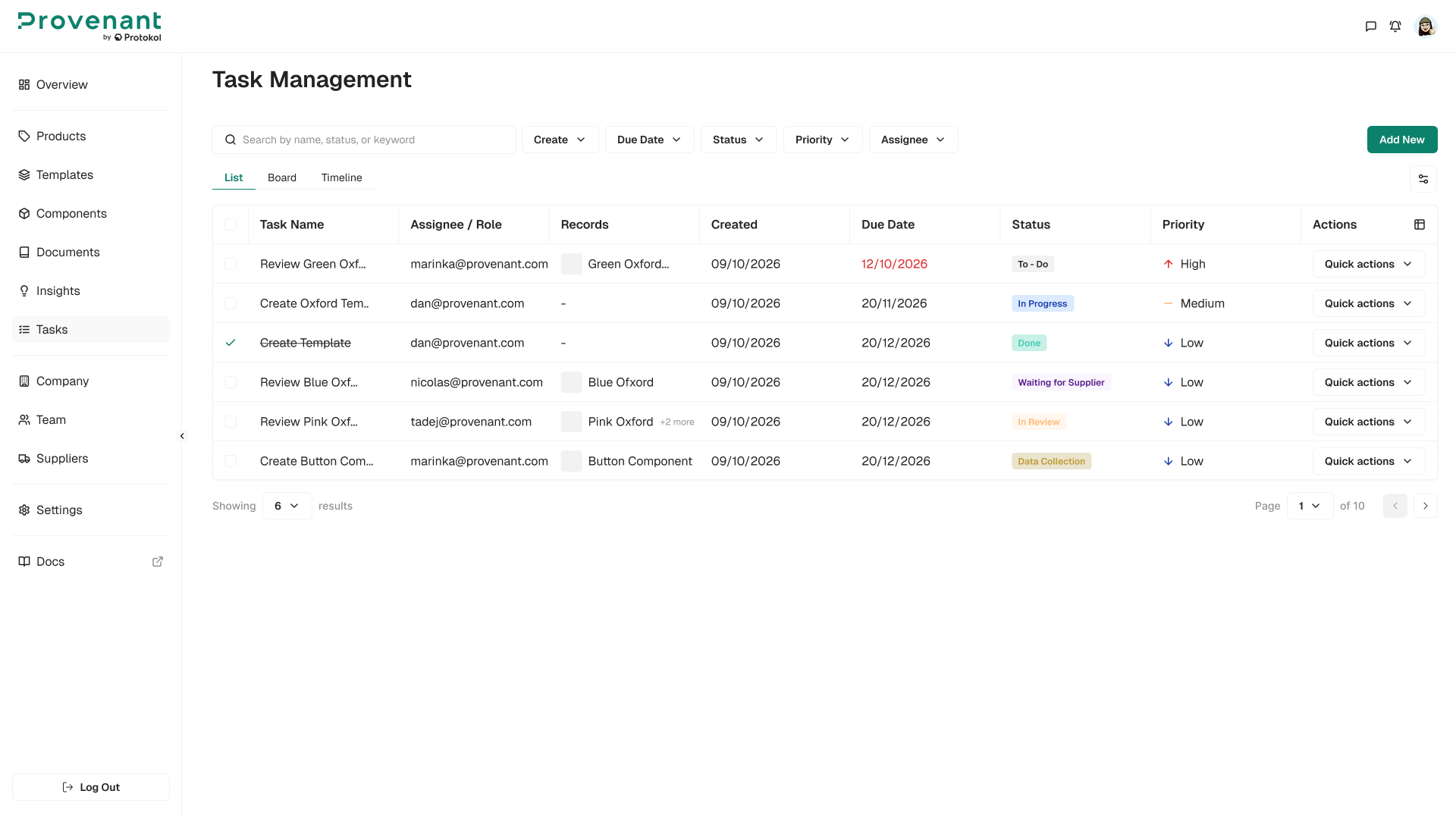
The List view is the default. It shows one row per task with these columns: selection control, Task Name, Assignee, Links, Created, Due Date, Status and Priority, plus a quick actions menu.
The toolbar above the views is shared by the List and Board views, and your search and filters are kept when you switch between them.
An applied filter shows its value inside the filter control with a remove icon. Click Reset to clear all filters at once.
Board view
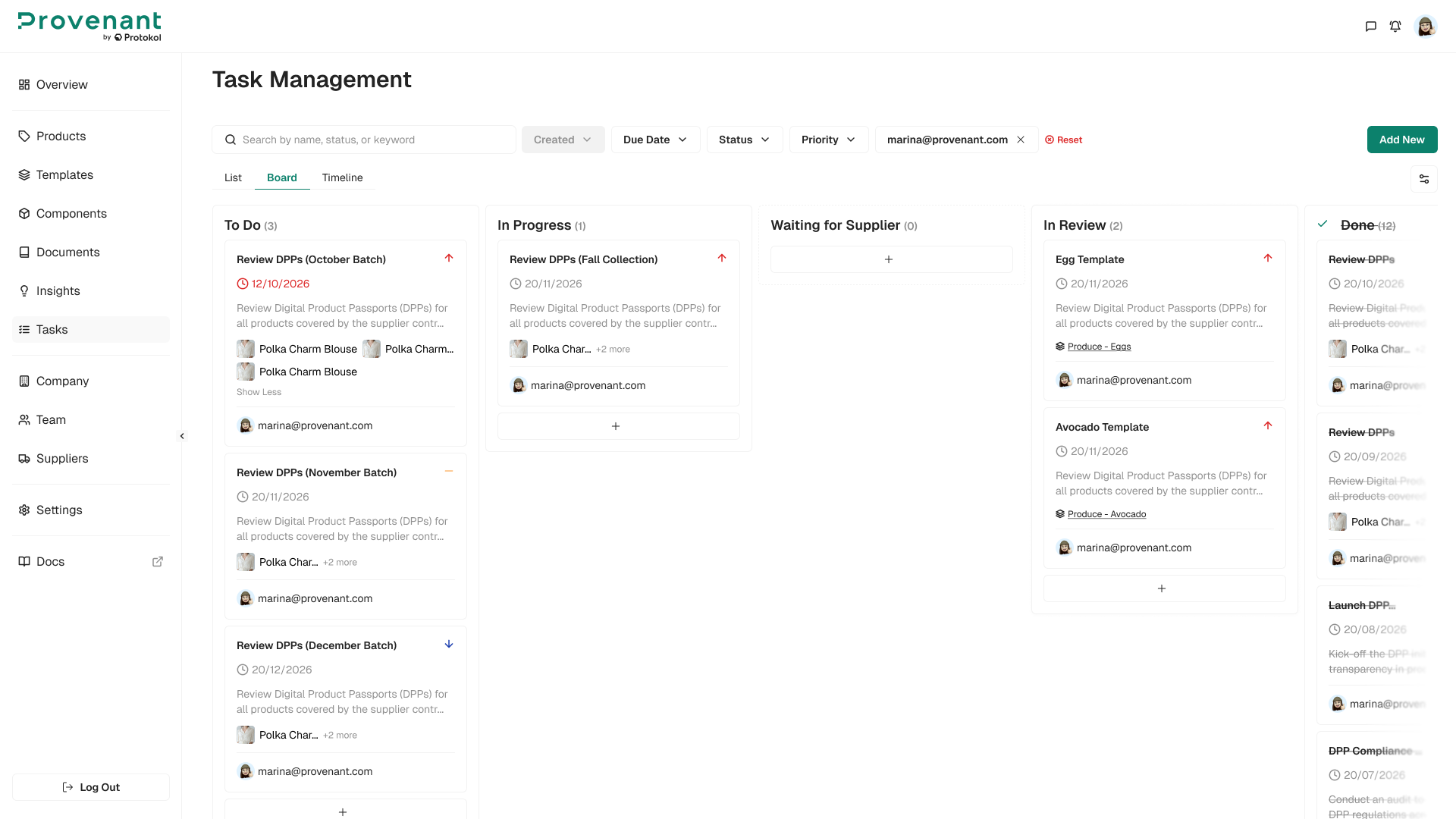
The Board view shows tasks as cards grouped by status, so a team can see at a glance what is waiting, in progress and in review. There is one column per status, in the order of the status table, and each column header shows the status name and its number of tasks.
- Each card shows the task title, the priority icon, the due date (in red when overdue and not Done), the description truncated to two lines, the linked records and the assignee.
- Linked records on a card show the first product with its image and name, followed by +N more when there are more. A linked template shows the template icon and its name.
- Drag a card to another column to change the task status. The change is recorded in Task History and triggers the status notifications.
- Cards inside a column are ordered by due date, earliest first.
- Search and filters narrow the cards and the column counts.
- The board scrolls horizontally when the columns do not fit, and each column scrolls vertically.
- Click a card to open the Task detail page.
Task detail page
The Task detail page is where the assignee does the work and where the creator checks progress. Click a task in the List view, on the Board or in the Overview widget to open it.
Task Notes
Task Notes is a collapsible section with a text box to add a note and the list of notes, newest first, each with its author and timestamp. Use notes to carry the conversation, for example the reason a review was not accepted. Notes cannot be edited or deleted, to keep the record intact. Adding a note notifies the creator and the assignee, except the author.
Task History
Task History is a collapsible, read only list of events in chronological order. It covers creation, each field change with its previous and new value, status changes, reassignments, files added or removed, links added or removed, notes added and reminder changes, each with the user and the timestamp.
If you open a task you cannot see, or a task that was deleted, the page shows a not available message and no data.
Link a task to records
Link a task to the records it concerns, so the assignee does not have to search for them. You can add links when you create the task and later from the Task detail page.
- A task can be linked to zero or more models, batches, items, components and templates of your organisation, of different levels at the same time.
- The record picker searches by name, identifier or DPP URL and shows the level of each result: Model, Batch, Item, Component or Template.
- Click a linked record to open that exact model, batch, item, component or template.
Notifications and reminders
Tasks use the existing notification system, in app and by email. Each notification shows the organisation, the task title, the linked records if any, the due date and the priority, and opens the Task detail page.
- You never receive a notification for an action you performed yourself.
- Due soon, overdue and reminder notifications are sent once per event and recipient, and are never duplicated.
- Reminders stop when the task is Done or deleted, and are recalculated when the due date changes.
- Each task notification type can be switched on or off, in app, by email or both, from
Settings›Notifications. All are on by default.
Permissions
Open Settings › Roles & Permissions to find the Tasks group, which can be assigned to custom roles.
| Permission | What it allows |
|---|---|
| View all tasks | See the tasks of your organisation. |
| Create tasks | Create new tasks. |
| Manage tasks | Edit any task, reassign it and delete it. |
A user without Manage tasks cannot reassign or delete a task they did not create. A task of one organisation can never be read or changed from another organisation, in the Manager or through the API.