GS1 Digital Link
Provenant can generate a GS1 Digital Link-compliant address for each DPP, built from your product's GTIN and, when available, its batch/lot number. This makes your DPP interoperable with GS1 resolvers and other systems that read GS1-standard identifiers, and it satisfies the ESPR requirement that a DPP's product identifier follow a recognised standard.
How it works
- When GS1 Digital Link is enabled for your organisation, published models receive an additional GS1 Digital Link URL alongside their existing Provenant DPP URL. Both resolve to the same DPP.
- The GS1 address is built from the product's Global Trade Item Number (GTIN) and, if present, its batch/lot number.
- Your existing Provenant DPP address keeps working exactly as before; GS1 Digital Link is an additional access path, not a replacement.
Enable GS1 Digital Link
- Go to
Companyin the left navigation. - Open the
GS1 Digital Linkgroup. - Toggle
Enable Digital Link?ON. - Click on
Savebutton.
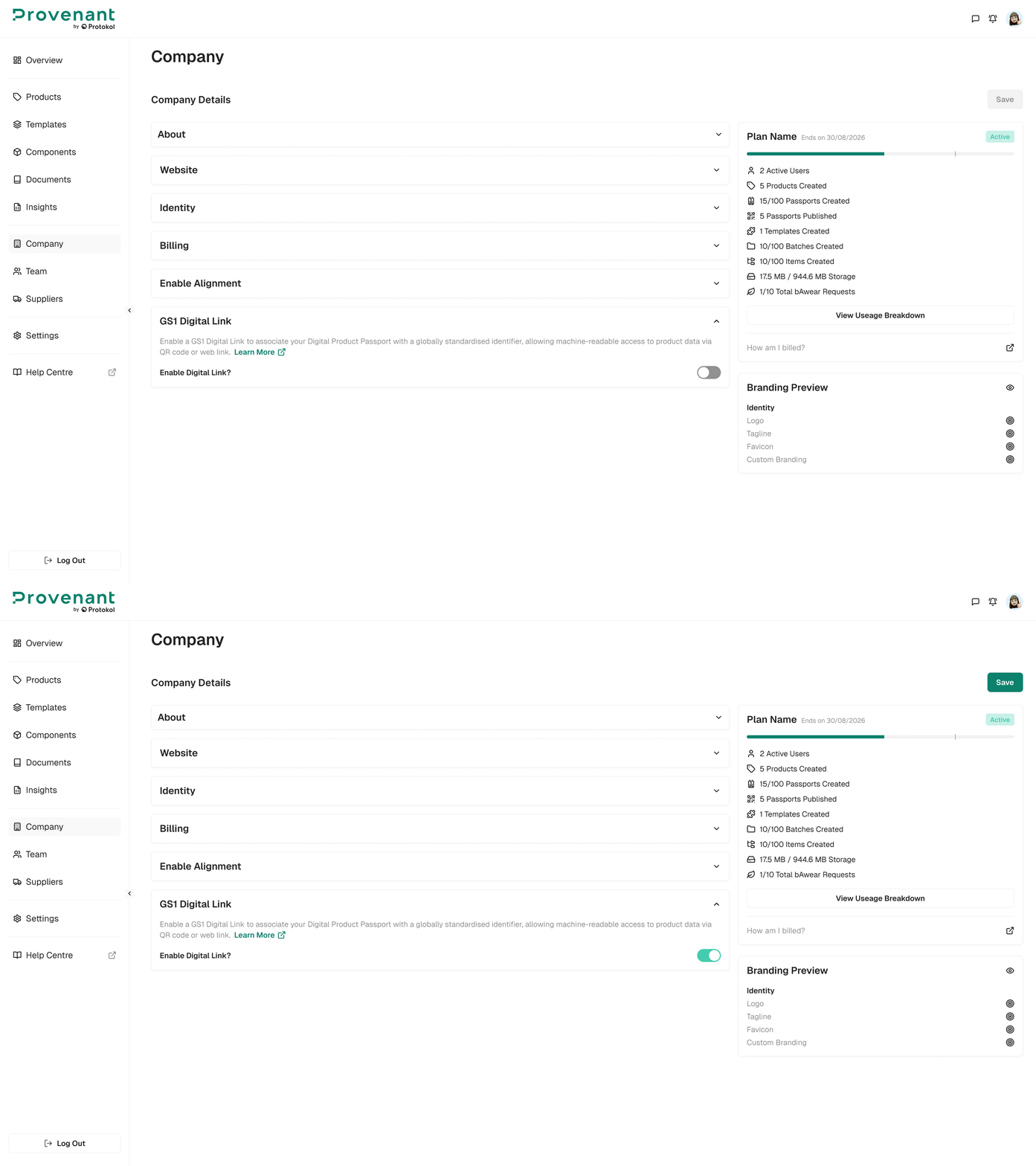
Note: GS1 Digital Link is disabled by default and must be enabled for your organisation before it can be turned on in Company settings. Contact your Provenant representative if it is not available in your workspace.
Add a GTIN and batch/lot number
Once GS1 Digital Link is enabled for your organisation:
- A Global Trade Item Number (GTIN) field appears and is required when creating a model. Provenant accepts GTIN-8, GTIN-12, GTIN-13, and GTIN-14.
- A batch/lot identifier field appears when creating a batch.
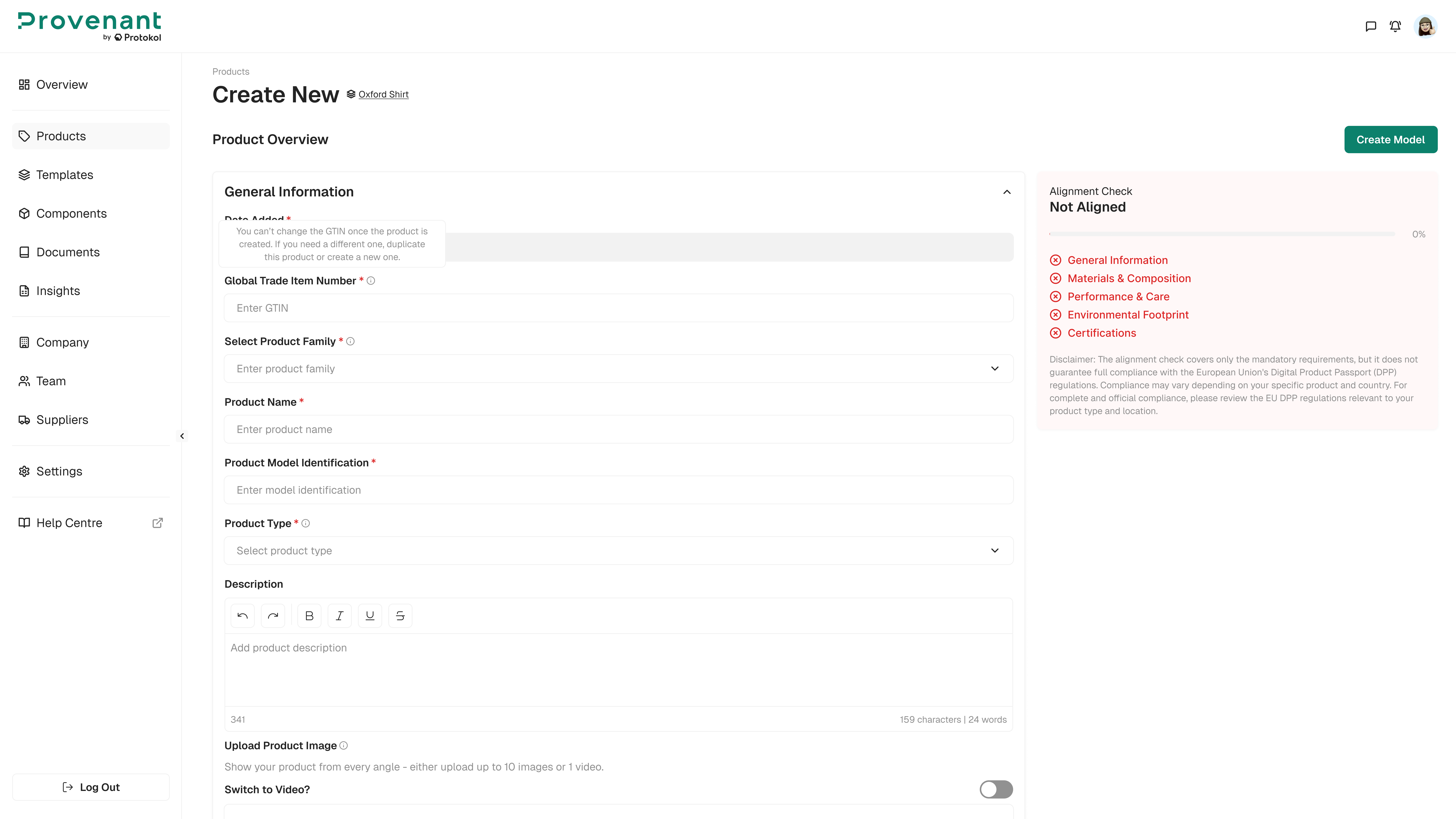
Note: Once a model is published, its GTIN can no longer be edited. To use a different GTIN, duplicate the product or create a new one.
Viewing the GS1 QR code
The QR Code preview on the Model Overview shows a GS1 tag whenever the model has a GTIN and GS1 Digital Link is enabled for your organisation. Scanning either QR code takes end users to the same DPP.